From examples to finished documents.
Five short steps: upload examples, review the template, generate new documents, and check the results.
Upload your examples.
In New Template, upload one to five finished .docx files of the same kind, like a set of invoices or reports. Pick Full template to make every text fillable, or Smart detect to keep boilerplate fixed. The hosted app is a prototype, so use documents without confidential or personal data there.
New Template → Upload examples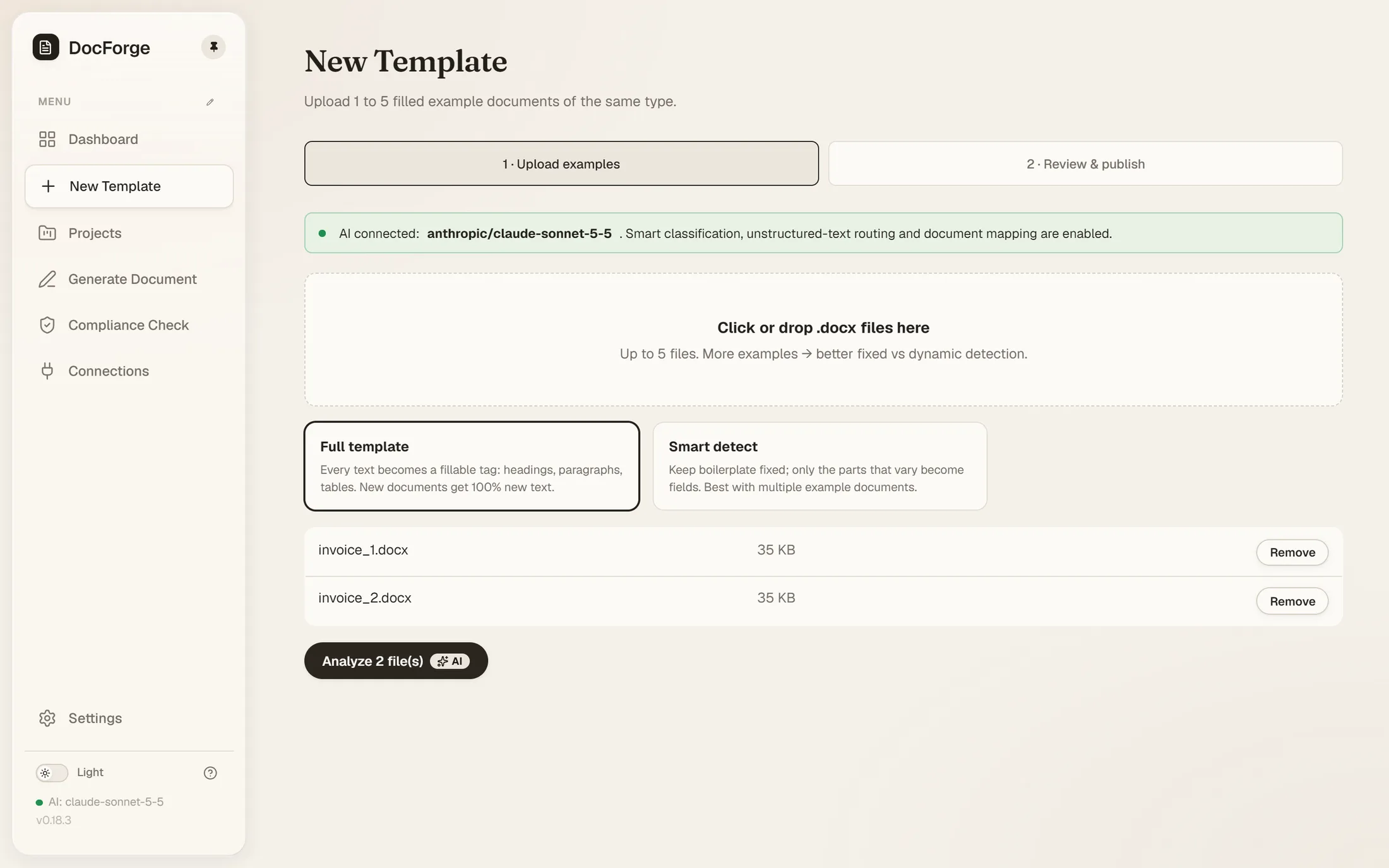

Watch the analysis.
DocForge compares your examples and works out what stays fixed, what varies, and what repeats. With AI connected you can watch it understand, classify and verify each part, and it falls back to a fast built-in engine when AI is off.
Runs automatically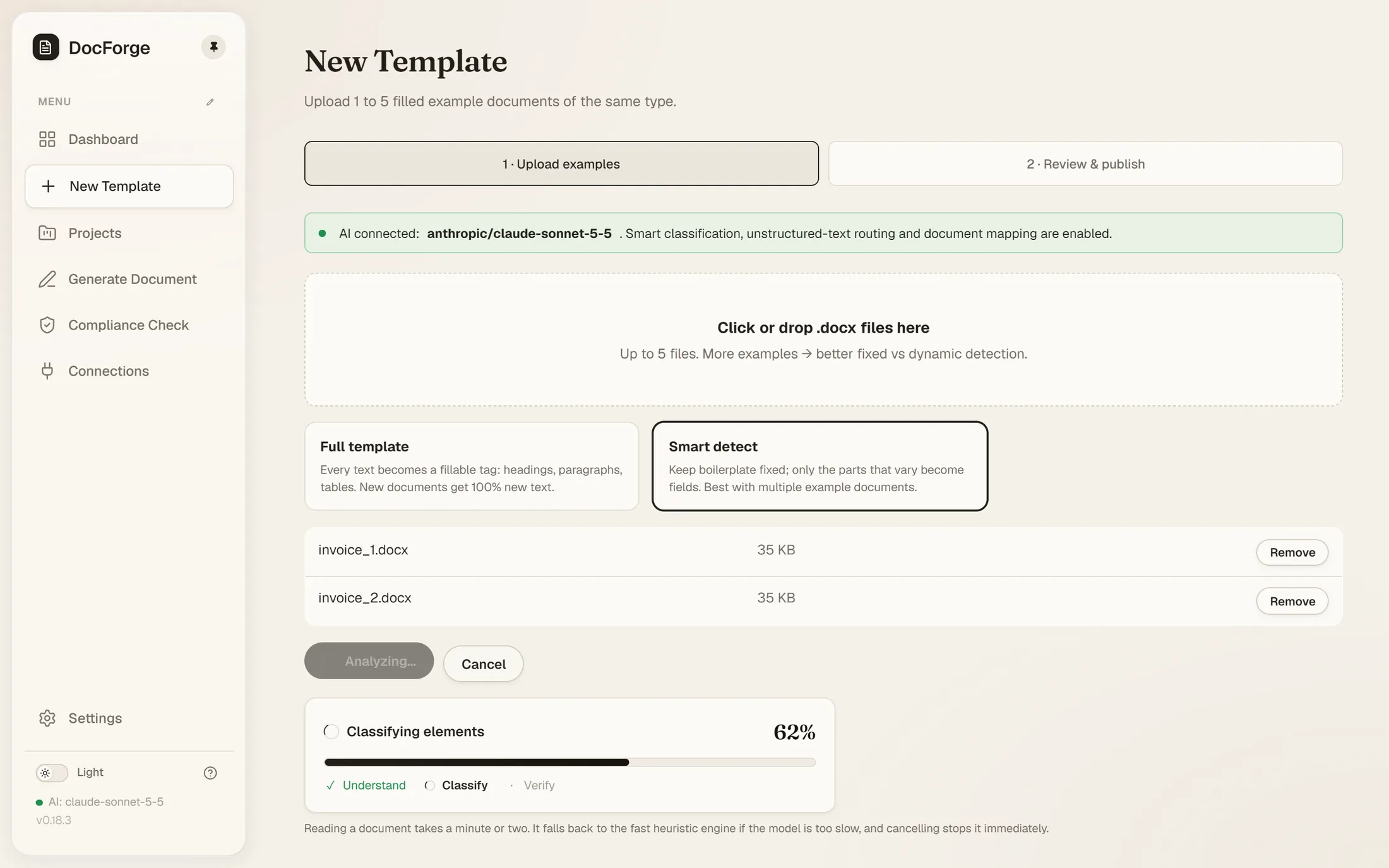

Review, then publish.
Every proposed field appears next to a live Word preview. Rename or retype fields, untick anything that should stay fixed, or turn fixed text into a field with one click. Publish when it looks right, that's version 1 of your template. Every publish after that is a new immutable version, and history stays on the template.
Review fields → Publish

Generate a document.
Pick the template and add your content, fill the form, paste rough notes, upload a filled document, or send JSON. The AI routes notes to the right fields on its own. Repeating table rows are added per item. Download the finished .docx in your exact layout.
Generate → Download .docx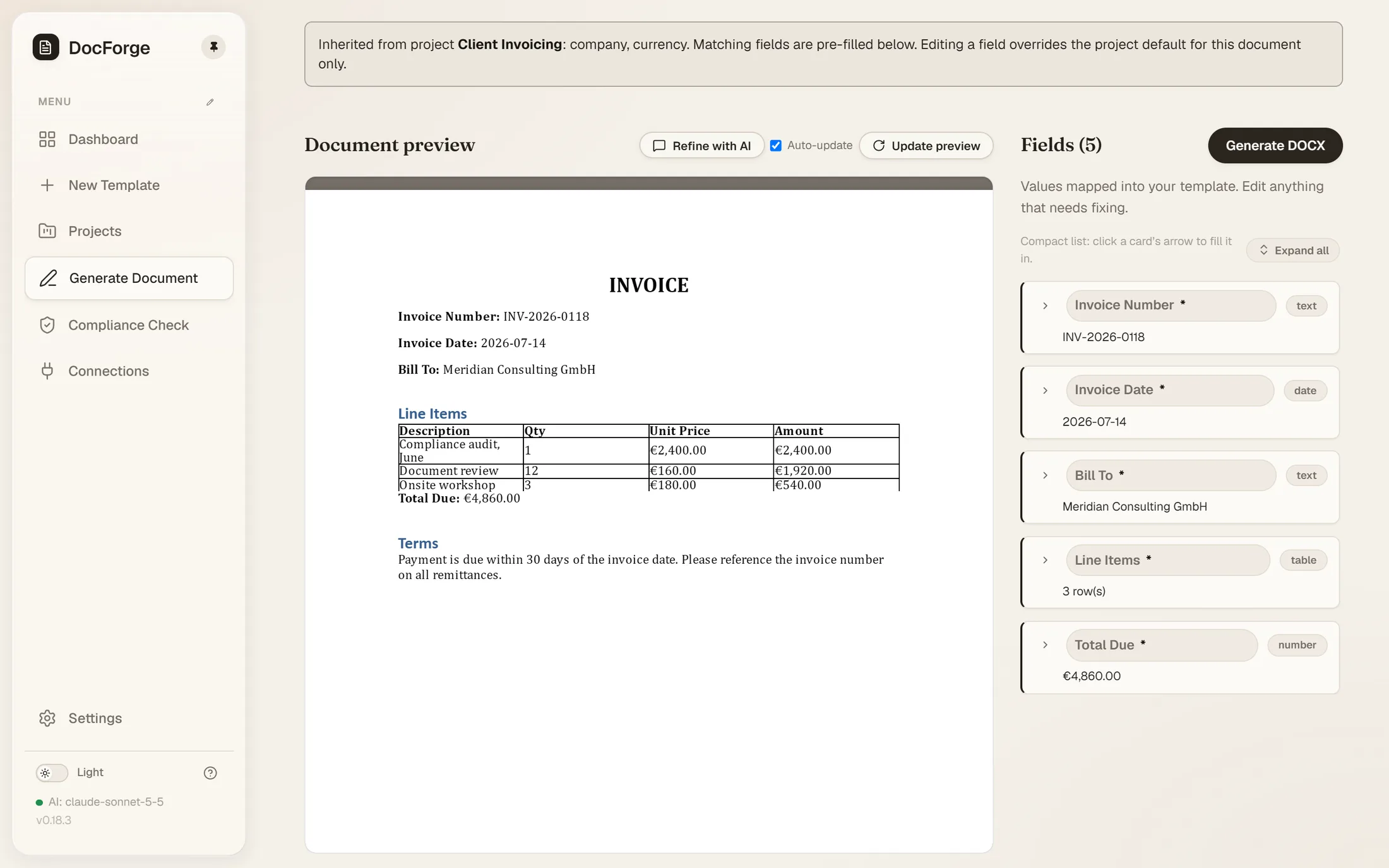

Check compliance.
When a document comes back edited, upload it to Compliance Check and compare it against its template. You get a score, every difference highlighted in place, and a one-click fix that downloads a corrected file.
Compliance Check → Fix
